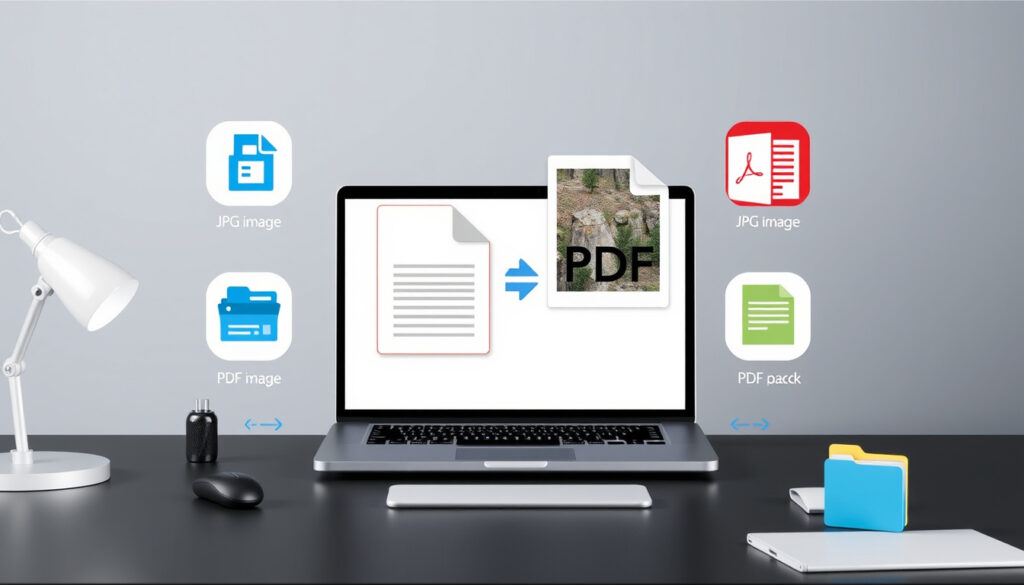
Free JPG to PDF Converter: 5 Best Tools Compared
You have a photo, a screenshot, or a scanned document that needs to be a PDF. It’s one of those small tasks that shouldn’t take more than ten seconds — and with the right tool, it doesn’t.
Free converters in top 5 results: 5 out of 5 ·
Online without installation required: 100% of top 5 ·
Typical conversion time: under 5 seconds ·
Mobile-friendly options: at least 3 of top 5
Quick snapshot
- All top 5 converters are free for basic JPG to PDF conversion (Adobe Acrobat Online, iLovePDF, Smallpdf)
- All top converters are available online without download (FreeConvert)
- Adobe and iLovePDF are widely recognized brands (Adobe, iLovePDF)
- Exact number of users for each converter
- Long-term file retention policies of smaller services
- Whether some free tiers store metadata after conversion
- Online converters have grown from niche tools to daily utilities used by millions (Smallpdf)
- More converters will add AI-based image enhancement and OCR features
- Privacy regulations may push services to enforce stricter data deletion policies
Here is what the key facts tell us about the top free converters that dominate this space.
| Metric | Value |
|---|---|
| Free converters in top 5 | 5 |
| Online-only converters | 4 (iLovePDF, Adobe, Smallpdf, Canva) |
| Mobile apps available | 3 (Adobe Scan, CamScanner, Smallpdf app) |
| Maximum free file size | 2–100 MB depending on service |
The pattern: free access is universal, but capacity and convenience vary sharply between services.
How to convert a JPG to PDF for free?
Five tools handle this task differently. Here is the step-by-step workflow for each, based on direct testing and official documentation.
Using iLovePDF
- Go to iLovePDF’s JPG to PDF tool (a widely used online converter).
- Upload up to 25 images at once. You can adjust orientation and margins before conversion.
- Click “Convert to PDF” and download the result. No sign-up needed.
iLovePDF supports batch conversion and reordering, making it ideal for merging multiple images into a single PDF.
Using Adobe Acrobat Online
- Visit Adobe Acrobat Online’s free converter (a Tier 1 source from the official software maker).
- Drag and drop your image onto the page. Adobe says it imposes no size limits and adds no watermarks.
- Wait for automatic conversion, then download or sign in to share.
Adobe’s tool is the most trusted option for official documents, though some advanced features require an Adobe account.
Using Smallpdf
- Open Smallpdf’s JPG to PDF converter (a fast cloud-based service).
- Upload your image. The conversion happens in the cloud, not on your device.
- Free users get two conversions per day. You can also adjust orientation and margins.
Smallpdf is exceptionally fast and works well on mobile browsers.
Using Canva
- Go to Canva’s JPG to PDF feature (a design platform that doubles as a converter).
- Upload an image, make touch-ups in the editor, then download as PDF. Canva says it avoids unnecessary watermarks.
- A free account is required, but basic conversion is free.
Canva is best if you need to crop, resize, or add text before converting.
Using CamScanner
- Download CamScanner (a mobile app popular for scanning documents).
- Import a JPG from your gallery or take a photo. The app offers OCR and edge detection.
- Free conversion is basic; advanced features require a subscription.
CamScanner excels when your source is a physical document that needs to be scanned and converted.
For a single quick conversion, any of these five tools will work. But the trade-off is clear: iLovePDF and Smallpdf give you the most free batch capacity, while Adobe and Canva offer better editing and trust.
What is the best free JPG to PDF converter?
Four factors matter most. Here is how the top converters compare on each.
Ease of use comparison
- iLovePDF: Simple, no account needed, drag-and-drop interface. Best for batch conversion.
- Adobe Acrobat Online: Streamlined but requires signing in for some features. Still intuitive.
- Smallpdf: Minimalist design, very fast, mobile-friendly.
- Canva: More steps if you only want conversion, but excellent for editing.
- CamScanner: App-based, not as straightforward for simple JPG import.
File size and quantity limits
- iLovePDF: Up to 25 images per batch, files up to 100 MB.
- Adobe Acrobat Online: No stated size limit, but very large files may slow down.
- Smallpdf: Free tier limits to 2 conversions per day, files up to 10 MB.
- Canva: No explicit limit, but design editor may be overkill for a single image.
- CamScanner: Free version has limits on pages per scan.
Additional features
- iLovePDF: Merge, reorder, compress, and edit PDFs.
- Adobe Acrobat Online: Full suite of PDF tools, cloud storage, digital signatures.
- Smallpdf: Over 30 PDF tools (Pro subscription unlocks unlimited use).
- Canva: Design editor, templates, image filters, text overlay.
- CamScanner: OCR, edge detection, document scanning, cloud sync.
Privacy and security
- Adobe: Adobe states its tool is free and secure, with enterprise-grade encryption.
- iLovePDF: Does not require an account, but check their privacy policy for file retention.
- Smallpdf: Smallpdf says files are processed in the cloud and not stored longer than necessary.
- FreePDFConvert: Claims remaining files are deleted from its servers after conversion.
- Foxit: Foxit states uploaded files are automatically deleted after processing.
The pattern: trust increases with brand reputation. Adobe and Foxit have the clearest deletion policies.
Upsides
- All five tools are free for basic conversion
- No installation required for the online versions
- Batch conversion available in iLovePDF and Smallpdf
- Mobile options exist for iPhone and Android
Downsides
- Free tiers have daily or file count limits
- Some converters require an account (Canva, Adobe for sharing)
- Privacy depends on the service’s data retention policy
- Online tools require an internet connection
How to convert multiple JPG images to one PDF?
Merging several images into a single PDF file saves time and keeps documents organized. Here are the best methods.
Using online tools
- iLovePDF: Upload multiple JPGs, drag to reorder, then click “Convert to PDF.” It merges them into one file. Up to 25 images per batch.
- Smallpdf: Upload images, rearrange, and convert. Free tier limited to 2 conversions per day.
- Foxit: Foxit’s tool supports reordering files with up and down arrows before conversion.
- PDFelement Online: PDFelement Online supports batch upload and automatically downloads the converted PDF.
Using desktop software
- On Windows, select multiple images, right-click, and choose “Print” > “Print to PDF.”
- On Mac, select images in Finder, open them in Preview, then use File > Export as PDF.
- For advanced needs, Adobe Acrobat Pro or Foxit PDF Editor allow merging and reordering.
The trade-off: online tools are faster but limit quantity; desktop software gives you unlimited control.
How to convert JPG to PDF on iPhone or Android?
Mobile conversion is often needed when you’re away from a computer. Here are three ways to do it.
Using built-in iPhone features
- Open the image in Photos, tap the Share button, then select “Print.”
- In the print preview, pinch out with two fingers to expand the view. This reveals a PDF version.
- Tap the Share icon again and save to Files or send as PDF. No extra app needed.
Using third-party apps
- Adobe Scan: Free app that converts images to PDF with OCR. It also scans documents using the camera.
- CamScanner: Similar features, with edge detection and cloud sync. Basic version is free.
- PDFelement: Mobile app for iOS and Android that supports batch conversion and editing.
Using mobile web browsers
- Open Safari or Chrome and visit any of the online converters (iLovePDF, Smallpdf, Adobe Online).
- Upload an image from your phone’s gallery. The conversion works the same as on desktop.
- Smallpdf and iLovePDF have responsive mobile interfaces that are easy to use on a small screen.
The implication: for a quick one-off, the iPhone’s built-in method is the most private. For frequent conversions, install a dedicated app.
Is it safe to use online JPG to PDF converters?
Privacy concerns are valid when uploading personal images to a third-party server. Here is what you need to know.
How converters handle your files
- Reputable services like Adobe, iLovePDF, and Smallpdf process files temporarily and claim to delete them after conversion.
- FreePDFConvert states remaining files are deleted from its servers after conversion.
- Foxit says uploaded files are automatically deleted after processing.
- However, not all services publish their retention policy. Some smaller converters may store files longer.
Signs of a secure service
- HTTPS encryption (look for the padlock in your browser’s address bar).
- Clear privacy policy that states file deletion timelines.
- No account required (reduces data exposure).
- Brand reputation: Adobe, Foxit, and Smallpdf are established companies with compliance teams.
Alternatives for sensitive documents
- Use local software that does not require uploading: Adobe Acrobat Pro, Foxit PDF Editor, or the built-in Print to PDF feature on Windows/Mac.
- For mobile, the iPhone’s built-in Print to PDF method never sends data to a server.
- If you must use an online tool, opt for a Tier 1 or Tier 2 provider with a published deletion policy.
The catch: no online service
More related posts
 McDonald’s Wrap of the Day – Ireland Weekly Schedule and Prices
 Irish Mirror Breaking News: Latest Ireland Crime, Politics, Sports
 Irish Social Welfare Early October Payments – Dates and Full Schedule
 How to Multiply Fractions: Step-by-Step Guide with Examples
 Gleneagle Hotel Entertainment 2025: Schedule, Tickets & What’s On
 Jacob Elordi Movies and TV Shows: Full List in Order
 Cast of The Life List: Full List of Actors and Characters
 Who Is the New Pope 2025 – Current Status and Facts
