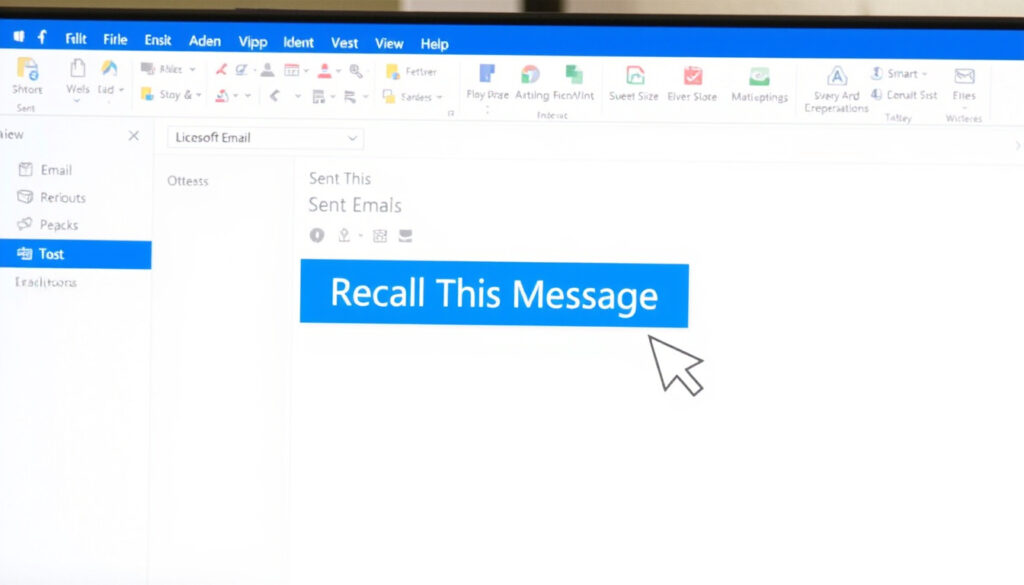
How to Recall an Email on Outlook – Complete Step-by-Step Guide
How to Recall an Email in Outlook: Complete Guide
The recall function in Microsoft Outlook enables users to retract sent messages, but its effectiveness depends heavily on specific technical conditions. Unlike simple “undo” features found in other email services, Outlook’s recall mechanism operates only within Exchange and Microsoft 365 environments and requires that recipients have not yet opened the message.
This feature has existed in Outlook for years, yet many users remain unaware of its strict requirements or the platform variations that affect whether recall will function. The process differs significantly between desktop applications, web interfaces, and mobile devices, with some versions lacking the feature entirely.
Understanding when and how Outlook email recall works can save professionals from embarrassing mistakes or sensitive data breaches. This guide covers the complete procedure across all major platforms, the conditions that determine success, and the alternatives available when recall is not possible.
How Do I Recall an Email in Outlook?
The ability to recall a sent email in Outlook depends entirely on the messaging infrastructure underlying your account. Outlook supports three distinct recall mechanisms: the traditional recall command available in desktop versions connected to Exchange servers, a simplified version in Outlook on the web for business accounts, and the Undo Send delay feature present across most modern Outlook interfaces.
| Requirement | Desktop | Web | Mobile |
|---|---|---|---|
| Exchange/Microsoft 365 account required | Yes | Limited | No |
| Message must remain unread | Yes | Yes | Beta only |
| Same organization as recipient | Yes | Yes | Beta only |
| Recall option visible immediately | Within 120 seconds of sending | Variable by version | No (standard version) |
Essential Conditions for Recall
Several prerequisites must be met before the recall option becomes available. Both the sender and recipient must use Microsoft 365 work or school accounts operating within the same Exchange organization. This requirement eliminates personal Outlook.com accounts, Gmail addresses, and any external email domains from recall eligibility.
- Recall functions only with Exchange Server or Microsoft 365 business accounts in the same organization
- The recipient must not have opened, replied to, moved, or flagged the message
- The email must remain in the recipient’s inbox in its original state
- Outlook for Mac requires version 16.94 or later for recall support
- Mobile recall remains limited to beta and test versions as of early 2025
- External accounts including Hotmail, Gmail, and Live.com cannot participate in recall operations
Microsoft’s own documentation confirms that recall works only when both parties use Microsoft Exchange accounts within the same organization. This architectural requirement cannot be bypassed through any settings adjustment.
Supported Versions and Technical Specifications
| Fact | Details |
|---|---|
| Supported Versions | Outlook desktop (2016 and later), Windows, Exchange Server, Microsoft 365 |
| Time Limit | No strict time limit, but immediate action improves success probability |
| Success Conditions | Unread status, same folder location, both parties online and within same organization |
| Failure Notification | Email sent to sender reporting recall attempt status for each recipient |
| Mac Support | Requires build 16.94 or later; older versions lack the feature entirely |
| Mobile Status | Recall available only in Android Beta and iOS TestFlight version 4.2504.0+ |
Can You Recall an Email After It’s Been Read?
The short answer is no. Once a recipient opens a message, marks it as read through any method, replies to it, moves it to a different folder, or applies any flag or category, the recall function will fail. This represents the most significant limitation of Outlook’s recall mechanism and the primary reason users report that recall attempts do not work.
Why Read Status Matters
When Outlook executes a recall command, it sends a replacement request to the recipient’s mail server. The server checks whether the original message remains in its original state—unread and unmoved. If the recipient has interacted with the message in any substantive way, the server denies the recall request and the original message remains in the recipient’s mailbox.
Microsoft’s official documentation explicitly states that recall succeeds only when the message remains untouched by the recipient. The system cannot override user actions that have already modified the message’s status on the server.
The Message Recall Report, which Outlook sends to the sender after a recall attempt, provides per-recipient status information. This report indicates whether each recipient’s copy was successfully deleted or whether the recall failed for specific individuals.
What Happens When Recall Fails
When recall cannot remove the original message, the recipient typically receives both the original message and a notification that a recall was attempted. In some configurations, the original message may display a note indicating that the sender attempted to recall it. The sender does not receive automatic notification of whether recipients saw the original message before recall failed.
How to Recall an Email in Outlook Across Different Platforms
The recall procedure varies considerably depending on which Outlook application you are using. Understanding these differences helps ensure you follow the correct steps for your specific environment.
Classic Outlook Desktop for Windows
The full-featured recall option exists in the classic Outlook desktop application running on Windows with an Exchange or Microsoft 365 connection. Users can access this feature through the ribbon interface after opening a sent message in its own window.
- Open Outlook and navigate to the Sent Items folder
- Double-click the email you wish to recall to open it in a separate window (the reading pane will not work)
- Select the Message tab in the ribbon, then click Actions
- Choose “Recall This Message” from the dropdown menu
- Select either “Delete unread copies” or “Delete unread copies and replace with a new message”
- Optionally check the box to receive notification of success or failure for each recipient
- Click OK and, if replacing, compose and send the new message
The replace option allows you to send a corrected version of the message, though this feature is not available in all Outlook versions. For additional guidance on managing sent messages, Microsoft offers comprehensive support resources for recall and message replacement procedures.
New Outlook for Windows
Microsoft’s redesigned Outlook application, sometimes called “New Outlook,” streamlined the recall process but removed some advanced options. The interface presents a simplified approach that works well for basic recall needs.
- Open the Sent Items folder in New Outlook
- Double-click the target email to open it in a separate window
- Click the Recall Message button in the ribbon
- Confirm by clicking OK when prompted
The New Outlook version deletes unread copies of the message but does not offer the option to replace with a new message. Users should check their inbox for the Message Recall Report to determine the outcome of their attempt.
Outlook on the Web
Outlook on the web provides a limited recall function for users with Microsoft 365 work or school accounts. The steps differ slightly between the modern and classic web interfaces, though both achieve the same end result.
For the modern web interface, open Sent Items, double-click the email, and click Recall Message in the ribbon, then confirm with OK. For the classic web version, the recall option may appear under the Move menu after opening the message.
Those using the web version can find detailed instructions through Microsoft’s official support documentation for Outlook on the web, which covers both interface variants.
Outlook for Mac
Mac users can access recall functionality, but only with Outlook version 16.94 or later. Earlier versions do not include this feature, so checking your current build number before attempting recall is essential.
- Open the Sent folder in Outlook for Mac
- Double-click the message to open it in a separate window
- Click Recall Message in the ribbon
- Select Recall when prompted, then confirm with OK
The Mac version requires the specific build number to be met before the recall option becomes available. Microsoft provides dedicated support documentation for Mac users explaining the version requirements and step-by-step procedures.
Outlook Mobile Applications
Standard mobile versions of Outlook do not currently support email recall. However, Microsoft began rolling out recall functionality in late February 2025 through beta channels, making mobile recall a near-term possibility for broader audiences.
For users with access to the beta versions on Android or iOS TestFlight, the process involves opening the Sent folder, selecting the message, tapping the menu icon, and choosing Recall. All users must then await a status notification email reporting the outcome.
Recall on mobile devices remains unavailable to most users. The feature exists only in beta versions (4.2504.0 and later) and is not part of the standard mobile app release. Those without beta access should consider using the Undo Send delay feature as an alternative.
Why Can’t I Recall an Email in Outlook?
Several common issues prevent successful email recall. Understanding these failure points helps users diagnose problems and determine whether recall was ever possible for their specific situation.
Primary Reasons Recall Fails
The most frequent cause of failed recall attempts involves the recipient already having read the message. Any interaction with the email—opening it, replying, forwarding, moving, or even previewing in the reading pane—immediately disqualifies it from successful recall.
Account type incompatibility represents another major obstacle. Personal Outlook.com accounts, Gmail, Yahoo Mail, and other external email services cannot participate in Exchange-based recall operations. Both sender and recipient must be within the same Microsoft 365 or Exchange organization.
Troubleshooting Steps
When the recall option does not appear or fails to work, verify the following conditions. First, confirm that you and your recipient both use work or school accounts within the same organization and that both accounts are connected to Exchange servers rather than IMAP or POP configurations.
Second, ensure the email was opened in its own separate window rather than in the reading pane. The recall command only functions when accessing the message through a double-clicked window.
Third, check that you are using a supported Outlook version. Mac users must have build 16.94 or later. Mobile users need beta versions 4.2504.0 or higher.
Fourth, review the Message Recall Report sent to your inbox. This report provides detailed status information for each recipient, indicating whether recall succeeded, failed, or is pending.
If you cannot see the recall option at all, the most likely explanations are: using an external email account, the recipient has already opened the message, or your Outlook version does not support the feature. Check your account type in Settings and verify the recipient’s account status.
The Outlook Email Recall Process Step by Step
Understanding the technical sequence behind recall helps clarify why certain conditions must be met. The process involves multiple server communications and status checks that occur in rapid succession.
- The user sends an email, which is delivered and stored on the Exchange server
- The sender locates the message in Sent Items and initiates the recall command
- Outlook connects to the Exchange server and requests status verification for the message
- The server checks whether the message remains unread and in its original folder for each recipient
- If conditions are met, the server deletes the unread copies and confirms success to the sender
- If any recipient has read or moved the message, the server denies the request and reports failure
- Outlook generates a Message Recall Report and sends it to the sender’s inbox
What Is Known and Unknown About Outlook Recall
| Established Information | Information That Remains Unclear |
|---|---|
| Recall works only with Exchange/Microsoft 365 in same organization | Exact success rate varies by organizational configuration |
| Message must remain completely unread by recipient | Whether server-side rules affect recall probability |
| Desktop versions offer more options than web or mobile | Timeline for mobile recall general availability |
| Replace option not available in New Outlook | Impact of third-party email security tools on recall |
| Mac recall requires version 16.94 minimum | Whether future Outlook updates will expand recall capabilities |
Context: How Outlook Recall Compares to Other Services
Outlook’s recall mechanism differs substantially from the undo functions offered by competing email services. Gmail, for instance, provides a configurable delay period—typically 5 to 30 seconds—during which any sent message can be canceled. This approach works regardless of recipient actions because the message has not yet been delivered.
Outlook’s recall operates on a fundamentally different principle. The email is delivered immediately, and recall attempts to delete it after the fact. This approach requires server-side cooperation and can fail for numerous reasons beyond the sender’s control.
For users requiring guaranteed message control, alternatives such as delay send rules—where emails are held in the outbox for a configurable period before transmission—offer a proactive approach. Microsoft documents the delay delivery feature in their official support resources, allowing users to review messages before they leave their outbox.
Understanding the Technical Requirements
The recall feature depends on Microsoft Exchange Server architecture, which maintains message status centrally. When a message arrives in an Exchange mailbox, the server tracks its read/unread status, location, and modifications. Recall commands leverage this centralized tracking to determine whether deletion is possible.
IMAP and POP accounts, which many users configure in Outlook for personal email, do not provide the centralized status tracking that recall requires. This explains why personal Outlook.com accounts, Gmail accessed via IMAP, and other external services cannot participate in recall operations.
“Recall an Outlook message only if using Microsoft Exchange or Microsoft 365 accounts connected to an Exchange server. Recall does not work with other account types.”
— Microsoft Support Documentation
Summary: Can You Successfully Recall an Email in Outlook?
Outlook’s email recall feature provides a genuine safety net for users within the same Microsoft 365 or Exchange organization, but it comes with significant constraints. Success requires immediate action while the message remains completely unread, both parties using compatible business accounts, and either the desktop application or supported web interface.
For users outside these strict parameters, alternatives such as the Undo Send delay feature or delay delivery rules offer more reliable protection against premature or incorrect email transmission. Understanding these limitations helps professionals set appropriate expectations and avoid relying on recall for sensitive communications.
For those seeking to optimize their email workflow and understand broader communication tools, exploring resources on Speed Test – Understand Internet Performance Better can provide valuable context for how modern communication infrastructure supports business operations.
Frequently Asked Questions
Why is my Outlook recall not working?
Recall fails most commonly when the recipient has already opened the message, when either party uses a non-Exchange account (such as personal Outlook.com or Gmail), or when you are using a version of Outlook that does not support recall. Verify that you are using Outlook desktop with an Exchange connection and that the message remains completely unread.
How do I check the status of a recalled email?
Outlook sends a Message Recall Report to your inbox after each recall attempt. This report indicates the outcome for each recipient—whether the message was successfully deleted, whether recall failed, or whether the status remains pending. Check your inbox for this report following any recall attempt.
Can you recall emails in Outlook on Mac?
Yes, but only with Outlook for Mac version 16.94 or later. Earlier Mac versions do not include the recall feature. Ensure your Mac installation is updated to meet this requirement before attempting recall. Double-click the message in the Sent folder to open it separately, then access Recall Message from the ribbon.
Is there a way to unsend emails in Outlook mobile?
Standard mobile versions of Outlook do not support email recall. Microsoft began rolling out mobile recall functionality in late February 2025 through Android Beta and iOS TestFlight programs, requiring version 4.2504.0 or higher. Most mobile users do not yet have access to this feature and should use the Undo Send delay option instead.
What is the Undo Send feature in Outlook?
Undo Send provides a configurable delay—typically 5 or 10 seconds—during which users can cancel a sent message before it leaves their outbox. Unlike traditional recall, this feature prevents delivery entirely rather than attempting post-delivery deletion. Enable it through Settings, View all Outlook settings, Mail, Compose and reply, and Undo Send.
Does Outlook recall work if the recipient has read it?
No. Once a recipient opens a message, marks it as read through any method, replies to it, moves it, or applies any flags, the recall will fail. The Exchange server checks the message status at the time of recall and denies the request if any recipient interaction has occurred.
Can you recall emails sent to external addresses?
No. Email recall functions only within the same Microsoft 365 or Exchange organization. Messages sent to or from external addresses—including Hotmail, Gmail, Yahoo Mail, and other public email services—cannot be recalled through Outlook’s native functionality.
More related posts
 Irish Passport Renewal for a Child: Cost, Documents, and Steps
 Republic of Ireland National Team Standings: World Cup 2026
 Irish Social Welfare Early October Payments – Dates and Full Schedule
 Shelbourne Park Greyhound Stadium: Guide to Location, Parking & Tickets
 Houses for Sale Meath: Listings, Prices & Real Estate Guide
 SEO Content Brief Templates – Nyckeln Till Effektivt Innehåll
 Benn vs Eubank Jr: Rematch Results, Highlights & Recap
 Cast of The Life List: Full List of Actors and Characters
